Restore Dialog
The Restore dialog provides an easy way to use a Custom, tar, or Directory format backup taken with the pgAdmin Backup dialog to recreate a database or database object. The Backup dialog invokes options of the pg_dump client utility; the Restore dialog invokes options of the pg_restore client utility.
You can use the Query Tool to play back the script created during a plain-text backup made with the Backup dialog. For more information about backing up or restoring, please refer to the documentation for pg_dump or pg_restore.
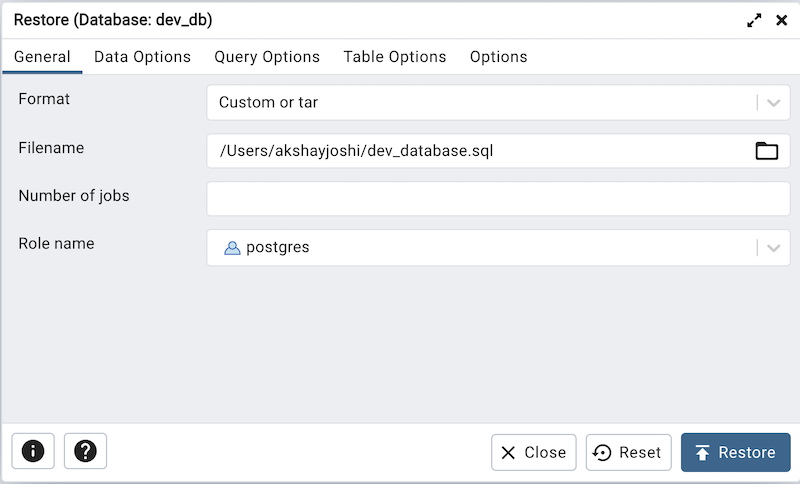
Use the fields on the General tab to specify general information about the restore process:
Use the drop-down listbox in the Format field to select the format of your backup file.
Select Custom or tar to restore from a custom archive file to create a copy of the backed-up object.
Select Plain to restore a plain SQL backup. When selecting this option all the other options will not be applicable. Note: The plain SQL restore process is executed in the backend using the psql command with the restrict option. The purpose of restrict is to enhance security by preventing dangerous commands embedded in a plain text dump file from being executed on a PostgreSQL server.
Select Directory to restore from a compressed directory-format archive.
Enter the complete path to the backup file in the Filename field. Optionally, select the Browse icon (ellipsis) to the right to navigate into a directory and select the file that contains the archive.
Use the Number of Jobs field to specify if pg_restore should use multiple (concurrent) jobs to process the restore. Each job uses a separate connection to the server.
Use the drop-down listbox next to Rolename to specify the role that will be used to authenticate with the server during the restore process.
Click the Data Options tab to continue. Use the fields in the Data Options tab to provide options related to data or pgAdmin objects that correspond to pg_restore.
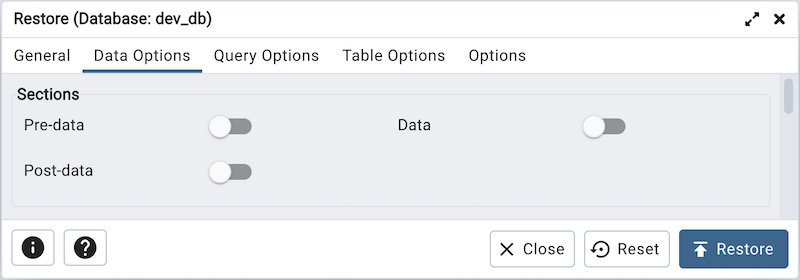
Move switches in the Sections field box to specify the content that will be restored:
Move the switch next to Pre-data to the Yes position to restore all data definition items not included in the data or post-data item lists.
Move the switch next to Data to the Yes position to restore actual table data, large-object contents, and sequence values.
Move the switch next to Post-data to the Yes position to restore definitions of indexes, triggers, rules, and constraints (other than validated check constraints).
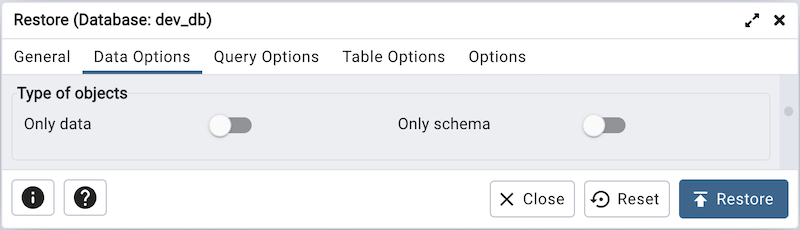
Move switches in the Type of objects field box to specify the objects that will be restored:
Move the switch next to Only data to the Yes position to limit the restoration to data.
Move the switch next to Only schema to limit the restoration to schema-level database objects.
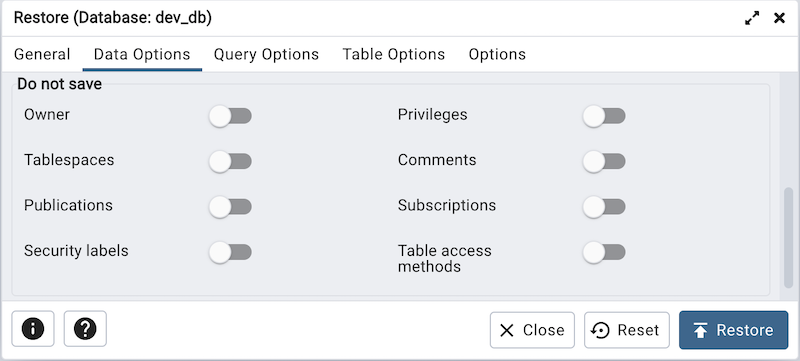
Move switches in the Do not save box to specify which objects will not be restored:
Move the switch next to Owner to the Yes position to exclude commands that set object ownership.
Move the switch next to Privileges to the Yes position to exclude commands that create access privileges.
Move the switch next to Tablespaces to the Yes position to exclude tablespaces.
Move the switch next to Comments to the Yes position to exclude commands that set the comments. Note: This option is visible only for database server greater than or equal to 11.
Move the switch next to Publications to the Yes position to exclude publications.
Move the switch next to Subscriptions to the Yes position to exclude subscriptions.
Move the switch next to Security labels to the Yes position to exclude Security labels.
Move the switch next to Table access methods to the Yes position to exclude Table access methods. Note: This option is visible only for database server greater than or equal to 15.
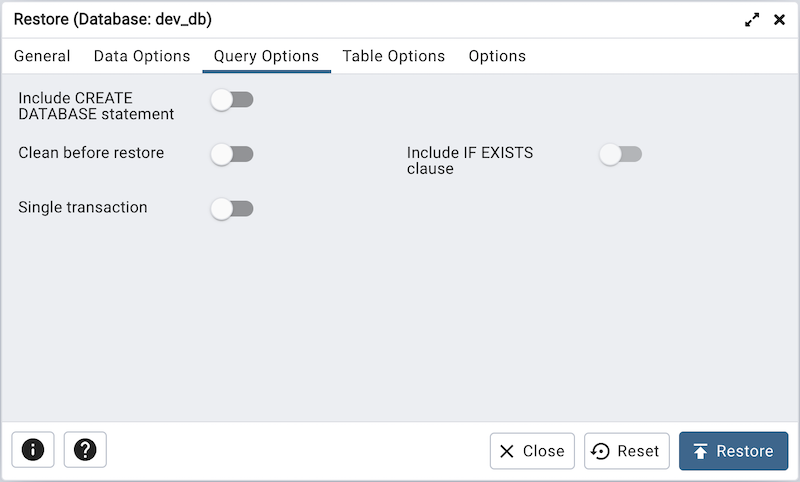
Click the Query Options tab to continue. Use these additional fields to specify the type of statements that should be included in the restore:
Move the switch next to Include CREATE DATABASE statement to the Yes position to include a command that creates a new database before performing the restore.
Move the switch next to Clean before restore to the Yes position to drop each existing database object (and data) before restoring.
Move the switch next to Include IF EXISTS clause to the Yes position to add an IF EXISTS clause to drop databases and other objects. This option is not valid unless Clean before restore is also set.
Move the switch next to Single transaction to the Yes position to execute the restore as a single transaction (that is, wrap the emitted commands in BEGIN/COMMIT). This ensures that either all the commands complete successfully, or no changes are applied. This option implies –exit-on-error.
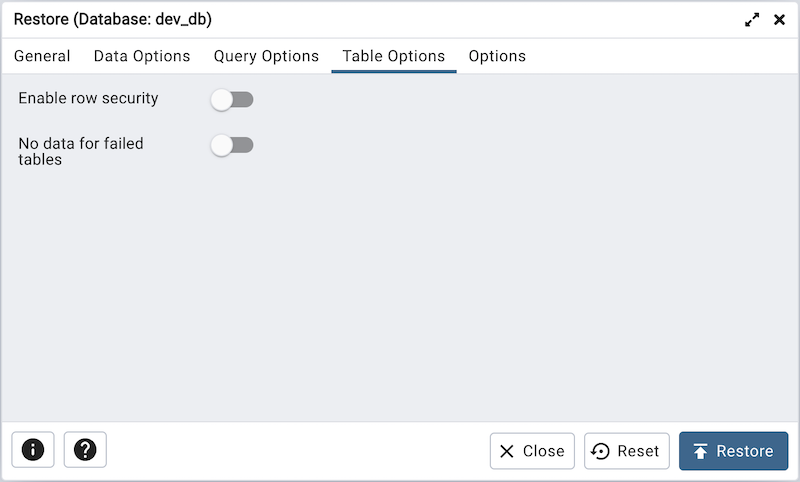
Click the Table Options tab to continue. Use the fields in the Table Options tab related to tables that should be included in the backup.
Move the switch next to Enable row security to the Yes position to set row_security to on instead, allowing the user to dump the parts of the contents of the table that they have access to. This option is relevant only when dumping the contents of a table which has row security.
Move the switch next to No data for failed tables to the Yes position to ignore data that fails a trigger.
Click the Options tab to continue. Use the fields in the Options tab to provide other restore options.
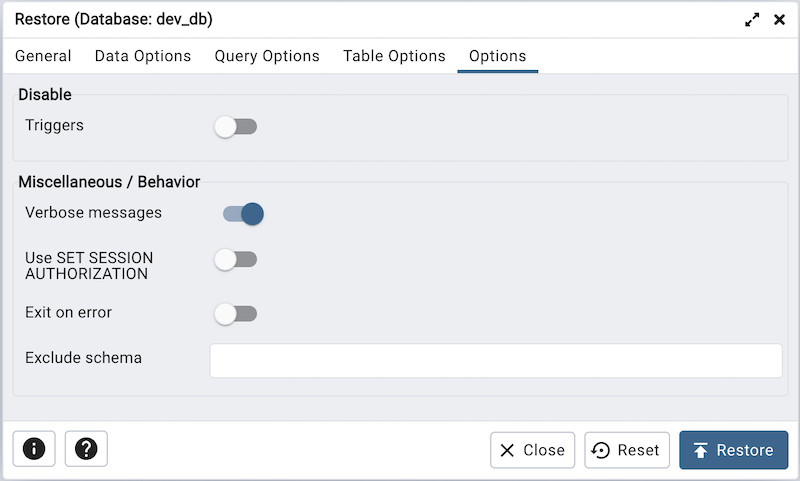
Move switches in the Disable box to specify the type of statements that should be excluded from the restore:
Move the switch next to Triggers (active when creating a data-only restore) to the Yes position to include commands that will disable triggers on the target table while the data is being loaded.
Move switches in the Miscellaneous/Behavior box to specify miscellaneous restore options:
Move the switch next to Verbose messages to the No position to instruct pg_restore to exclude verbose messages.
Move the switch next to Use SET SESSION AUTHORIZATION to the Yes position to include a statement that will use a SET SESSION AUTHORIZATION command to determine object ownership (instead of an ALTER OWNER command).
Move the switch next to Exit on error to the Yes position to instruct pg_restore to exit restore if there is an error in sending SQL commands. The default is to continue and to display a count of errors at the end of the restore.
Use the Exclude schema field to not dump schemas whose name matches pattern.
When you’ve specified the details that will be incorporated into the pg_restore command, click the Restore button to start the process, or click the Cancel button to exit without saving your work. A popup will confirm if the restore is successful.
pgAdmin will run the restore process in the background. You can view all the background processes with their running status and logs on the Processes tab.