Contents
- Getting Started
- Deployment
- Login Page
- Enabling two-factor authentication (2FA)
- User Management
- Change Ownership Dialog
- Change User Password Dialog
- Lock/Restore Account
- Enabling LDAP Authentication
- Enabling Kerberos Authentication
- Enabling OAUTH2 and OIDC Authentication
- Enabling Webserver Authentication
- User Interface
- Menu Bar
- Toolbar
- Object Explorer Filter
- Tabbed Browser
- Tree Control
- Preferences
- Keyboard Shortcuts
- Search objects
- External database for pgAdmin user settings
- Connecting To A Server
- Managing Cluster Objects
- Managing Database Objects
- Creating or Modifying a Table
- Management Basics
- Backup and Restore
- Developer Tools
- Processes
- pgAgent
- pgAdmin Project Contributions
- Release Notes
- Licence
Login Page
Use the Login page to log in to pgAdmin:
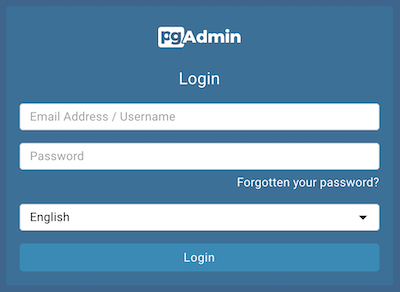
Use the fields in the Login page to authenticate your connection. There are two ways to authenticate your connection:
From pgAdmin version 4.21 onwards, support for LDAP authentication has been added. If LDAP authentication has been enabled for your pgAdmin application, you can use your LDAP credentials to log in to pgAdmin:
Provide the LDAP username in the Email Address/Username field.
Provide your LDAP password in the Password field.
Alternatively, you can use the following information to log in to pgAdmin:
Provide the email address associated with your account in the Email Address/Username field.
Provide your password in the Password field.
Click the Login button to securely log into pgAdmin.
Please note that if the pgAdmin server is restarted, then you will be logged out. You need to re-login to continue.
Recovering a Lost Password
If you cannot supply your password, click the Forgotten your password? button to launch a password recovery utility.
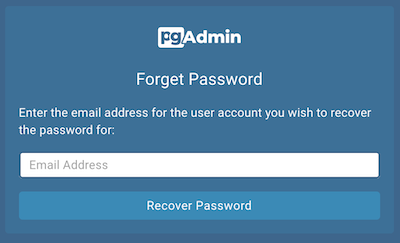
Provide the email address associated with your account in the Email Address field.
Click the Recover Password button to initiate recovery. An email, with directions on how to reset a password, will be sent to the address entered in the Email Address field.
If you have forgotten the email associated with your account, please contact your administrator.
Please note that your LDAP password cannot be recovered using this page. If you enter your LDAP username in the Email Address/Username field, and then enter your email to recover your password, an error message will be displayed asking you to contact the LDAP administrator to recover your LDAP password.
Avoiding a bruteforce attack
For accounts using the INTERNAL authentication source, pgAdmin locks
the account after MAX_LOGIN_ATTEMPTS consecutive failed logins. The
default is 3; set it to zero to disable.
For accounts authenticated against an external identity provider
(LDAP, OAUTH2, KERBEROS, WEBSERVER), brute-force protection
is not handled by pgAdmin and MAX_LOGIN_ATTEMPTS does not apply.
Operators using these sources should:
Configure account-lockout policy on the upstream provider (for example, Active Directory’s account-lockout GPO, OpenLDAP’s
ppolicyoverlay, or the OAuth2 provider’s rate limits).Configure request rate-limiting (for example,
limit_reqin nginx) on the reverse proxy in front of pgAdmin to bound login-attempt volume per source IP.